Lenovo Yoga Book 9i Review: Should You Buy This?
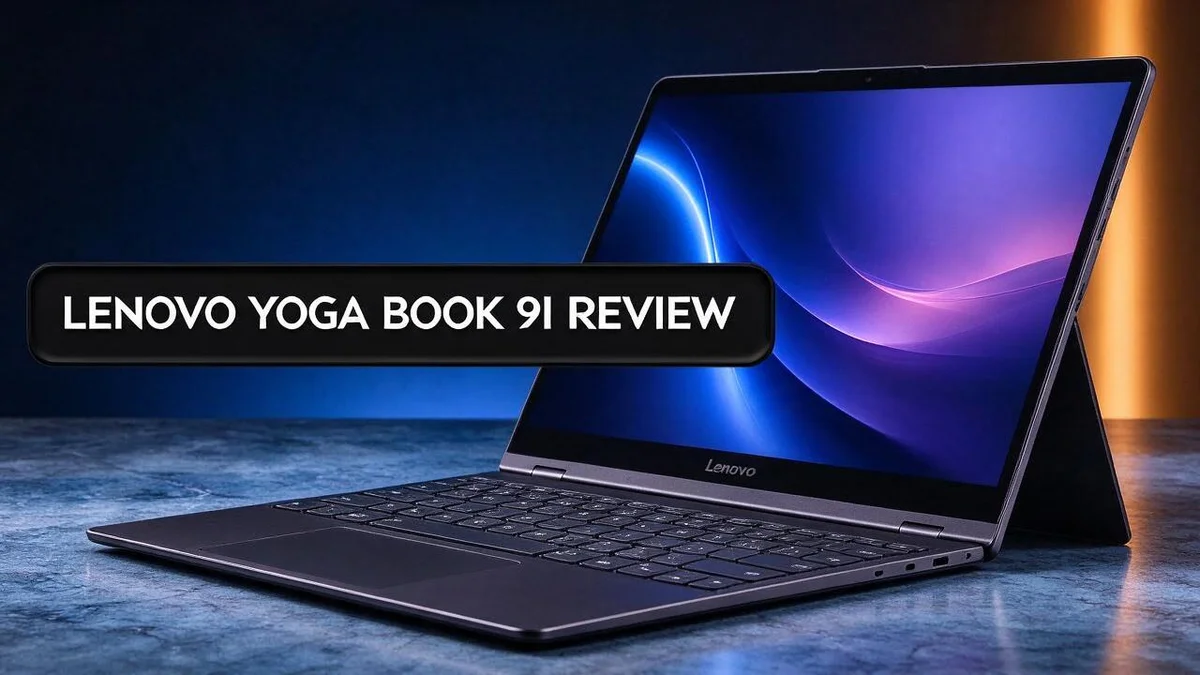
Imagine a laptop with two touchscreens. That is exactly what the Lenovo Yoga Book 9i offers. It packs a 13 inch frame, a stunning 4K display, and the largest screen area you can find on a laptop like this.
Many people wonder if this unique design is just a gimmick. We looked closely at how it works in daily use. Many users praise its versatility and say it helps them multitask with ease.
Of course, no device is perfect. The hardware feels solid, but the software can be hit or miss. Dual screen support in Windows and extra bloatware may frustrate some owners.
Keep reading to see if this dual screen laptop fits your work and play. We cover the design, the display, the typing experience, and our final verdict.
In a Nutshell
- Multitasking made easier: Extra screen space lets you keep notes, email, and video calls open at once. One user who tested it for two months found this a real help during daily work.
- Solid build: The hardware feels sturdy in everyday use. Many people feel more confident carrying it between home, office, and class.
- Software needs patience: Some features work smoothly while others feel unreliable. Expect a short learning curve before everything feels natural.
- Typing takes practice: The keyboard shown on the screen can feel awkward during long writing sessions. Many people prefer a separate keyboard for lengthy documents.
- Some daily annoyances: Preinstalled apps, or bloatware, may need removing first. The touchpad may feel awkward, and there is no 3.5mm audio jack.
- Worth a look for creators: Artists, students, and heavy multitaskers may enjoy the unique layout. Casual users who want a simple laptop might prefer something more traditional.
Dual Display Experience and Multitasking

- The world’s first full dual-screen, multi-mode laptop
- Two stunning 13.3″ PureSight OLED displays for versatile use
Last update on 2026-11-23 / Affiliate links / Images from Amazon Product Advertising API
The second screen changes how you work. Instead of switching windows, you can place tasks side by side. This creates a calmer workspace for busy days.
A reviewer who used the laptop for two months said multitasking felt natural. Over time, the extra room became a habit rather than a novelty. That long term view matters more than a quick first look.
Dual screen support is not perfect yet. Windows does not always handle two displays smoothly. You may need to drag windows to the right place by hand, which slows you down at first.
Think about your daily routine. If you flip between a document and a chat app all day, the lower display can hold the chat. Your main screen stays free for writing or reading.
Video calls work well alongside notes. Keep the meeting on the top screen while you jot points below. This setup reduces the need to minimize and reopen windows.
Creative work gets a boost too. Artists can keep reference images on one display. Students can hold lecture slides, research pages, and a blank notes file all at once.
Pick your layout based on your task. Some people prefer a wide canvas for editing. Others like a tall, stacked view for reading long articles. Test both before you settle on a routine.
Remember that the lower screen works best with touch and simple apps. Heavy editing on it may feel cramped. Use it as a helper space, not a replacement for your main workspace.
Long sessions reveal the real benefit. Short tests can hide small annoyances. Try the laptop for a full workday before you decide how it fits your routine.
Ask yourself how many windows you open at once. If the answer is often more than three, the extra space may feel like a relief.
If you usually work in one app, the second screen may sit unused. Your answer shows whether the layout suits you. That honest check saves time before you commit.
Build Quality and Design
Picking up the Lenovo Yoga Book 9i tells you a lot about its design. The frame feels compact for a 13 inch laptop. You can carry it in one hand without much effort.
Everyday handling matters more than spec sheets. Open and close the screens a few times. Notice whether the hinge feels steady or loose. A steady hinge gives you confidence when you tap the lower display.
Check the edges with care. The outer rim protects both panels when the device sits in a bag. Look for even gaps around each screen. Uneven gaps can suggest weak assembly.
Two screens change how your hands work. When you sit at a desk, your wrists rest near the lower display. Keep your posture relaxed and your elbows close to your sides.
The top screen sits high on the desk. A simple stand can bring the view to eye level. Raising the screen may reduce neck strain on long days.
Look at the design from every angle. The lines stay clean and simple. There are no loud decorations, so the laptop suits offices, classrooms, and client meetings.
Fingerprints and smudges show up fast on large touch surfaces. Keep a soft microfiber cloth in your bag. A quick wipe keeps both displays clear for presentations.
Travel tests every design choice. Slide the laptop into a sleeve before you leave home. A snug fit guards the corners during bumps on trains or in cars.
Hardware and layout work together. A solid body supports the two screens and makes the unusual layout feel safe. Without that stability, the design would feel risky.
Test the keyboard area too. Place your fingers on the lower display and feel the surface. Smooth support and steady balance make quick notes easier. Good design should feel natural right away.
Build quality shapes your first impression. Spend a few minutes handling the device before you decide. Your hands will tell you whether the design fits your daily routine.
Software and Windows Dual-Screen Support
Software shapes the whole experience. Strong hardware gets attention first, but the software decides how smooth daily work feels. Windows must treat both panels as useful space.
The lower display needs apps that know how to use it. Some programs stretch across both screens. Others stay stuck on the top panel.
Start with a simple test. Open your favorite apps and move them between screens. Check how they resize and whether they remember their position after a restart.
Windows display settings offer helpful options. Extended mode keeps both panels active. You can change the arrangement in a few clicks.
Snap Assist also helps. You can drag a window to an edge and fill half the space. Keyboard shortcuts speed up the process even more.
Driver and software updates matter too. Fresh updates can improve display behavior and touch response. Check for updates during the first few weeks, since early versions often need fixes.
Sleep and wake behavior deserves attention. Some users notice a short delay before both screens light up. Keeping the system current can reduce these small hiccups.
Touch input works alongside the mouse and keyboard. You can tap the lower screen for quick actions. Then you can return to the keyboard for longer tasks.
Who gets the most value? People who run many apps at once benefit most. Students can keep a textbook open on one side and notes on the other.
Designers can place tools on the lower screen. They can keep the canvas on the top panel.
Create a layout for each task. Save one setup for writing, another for research, and a third for video calls. After a few days, switching between layouts feels natural.
Keep your expectations realistic. The software handles many daily tasks well. Yet it still feels rough in places.
A little patience and smart settings go a long way. Read the notes after each update to see what changed.
Top 3 Alternatives
ASUS Zenbook Duo

- High-Performance DUO Take your productivity further in Windows 11 with the 16-core Intel Core Ultra...
- AI That Works Supercharge your productivity with 50 TOPS on Copilot, giving you instant file retrieval...

Last update on 2026-11-23 / Affiliate links / Images from Amazon Product Advertising API
Want more screen space? The ASUS Zenbook Duo gives you two displays in one laptop. A second screen sits above the keyboard, so you can keep chat windows open while you work.
It suits multitaskers and creators who juggle many apps. You can drag files between screens or watch a video while you edit.
Dell XPS 13

- INTEL CORE 5 SERIES 3 PERFORMANCE: Powered by the Intel Core 5 Series 3 320 processor with 6 cores and...
- 16GB RAM AND 512GB SSD STORAGE: Equipped with 16GB LPDDR5X memory and a 512GB PCIe solid-state drive...
Last update on 2026-11-23 / Affiliate links / Images from Amazon Product Advertising API
Love a small, sleek machine? The Dell XPS 13 packs a large screen into a compact body. Its thin aluminum frame feels light in your bag.
Travelers and students often pick this model for its portability. The edge to edge display keeps your focus on the content. Battery life stays strong through a long workday.
Microsoft Surface Laptop

- Brilliant Display – Stunning 13.8" PixelSense touchscreen[1], with brilliant LCD display[2], unleashes...
- Power that lasts all day – With 20 hours of battery life[3], the new Surface Laptop powers through your...
Last update on 2026-11-23 / Affiliate links / Images from Amazon Product Advertising API
Prefer a classic laptop with touch? The Microsoft Surface Laptop offers a bright touchscreen and a comfortable keyboard. Its sturdy build and smooth trackpad make typing simple.
It runs Windows 11 out of the box. Office workers and home users love its clean design. You can also choose a model with more storage or memory to match your needs.
Keyboard, Touchpad and Ports
Typing on this laptop feels different from a regular notebook. The lower screen can show an on screen keyboard when you need to write. Many people need time to adjust to it.
Touch typing takes practice on glass. Your fingers do not get the feel of physical keys. Short emails and quick notes work well. Long documents may feel tiring.
The touchpad needs time to get used to. Some reviewers find it inconvenient during daily work. Your hand may drift to the wrong area while you type.
Plan to use an external mouse for longer tasks. A small mouse gives you more control over the cursor. It also keeps your hands in a comfortable position.
Ports need some thought before you add accessories. This model has no 3.5mm audio jack. You need a Bluetooth headset or a USB adapter instead.
Plan your cable setup before important meetings. Pack a small hub if you connect a projector or monitor. Check which ports your other gear uses.
Connections matter most when you work from different desks. A simple hub keeps everything in one place. It also reduces clutter in your bag.
Think about your typing habits first. If you write a lot of long messages, an external keyboard can help you. If you mainly browse or review files, the screen keyboard may feel fine.
Check the touchpad settings in Windows. You can change pointer speed and tap behavior in the settings menu. Small changes can make the touchpad feel more natural.
Keep the ports clean and free of dust. Dust can build up around ports in a bag. A quick check after each trip keeps them ready.
Accessories make the difference for daily use. A keyboard case, mouse, and headset help you work comfortably. Pick accessories that match your routine.
The keyboard and ports shape how you use this device every day. Test typing and cable needs before you settle on your setup.
Pros and Cons
Pros
- The 4K display looks sharp and vivid for movies and photos.
- The design feels unique without being gimmicky.
- The 13 inch body offers the largest display area for its class.
- The laptop feels versatile for work, play, and creative tasks.
- Users often praise it for multitasking across apps.
Cons
- Windows does not support dual screen use very well.
- Preinstalled bloatware can clutter the system at first.
- Some people may prefer one screen for simple, everyday tasks.
Who Should Buy It
Some shoppers will love this laptop, while others should look elsewhere. The right choice depends on how you plan to use it each day.
Choose it if you want a sturdy machine for travel. Reviewers describe the hardware as solid. That matters if you carry your laptop to client sites, cafes, and airports often.
Consider a single screen model if you want simplicity. Lenovo also offers other Yoga and ThinkPad models. The Yoga 7 and the ThinkPad X1 Yoga Gen 6 may suit people who prefer one main display and fewer setup steps.
Try it in person before you commit. A store visit helps you see how the screens look side by side. You can also check how the keys and touchpad feel under your own hands. Your comfort matters more than any spec sheet.
Think about where you work most. If you sit at one desk all day, you may not need a portable design. If you move between rooms, offices, and home, the flexible design may feel natural. Ask yourself how often you pick up the laptop and carry it.
Make a short list of must have features. Write down what you need for work, school, or fun. Compare that list with this model and its trade offs. A clear list makes the decision far easier.
Look at your daily habits honestly. Some people enjoy learning new tools and adjusting their routine. Others want a laptop that works the same way every day. Your answer points you toward the right choice.
Once you know your needs, you can decide with confidence. This model rewards buyers who enjoy a fresh design and can accept a few quirks along the way.
Final Verdict
Here is our final take on the Lenovo Yoga Book 9i.
It is a bold machine that serves a narrow group very well. Most buyers will find it interesting, but few will call it perfect.
This laptop suits people who enjoy new ideas. If you like trying fresh layouts, you will likely have fun with it. Curious users often adapt faster than others.
It may frustrate people who need simple routines. A traditional laptop still wins for quick email and everyday office work. Those tasks do not need a second screen.
Think about your daily rhythm. Do you sit at one desk for hours, or do you move between rooms? Your answer shapes whether this design helps or gets in the way.
Consider your work style in more detail. Writers who draft long documents may prefer a standard keyboard. Designers who sketch or annotate may enjoy the lower screen as a canvas.
Look at your travel habits. Frequent flyers who want a lighter load may appreciate the compact footprint. Students who hop between classes may find it handy too.
Plan your first week carefully. Set your favorite apps and screen layouts early. Small choices now prevent frustration later.
Test the feel before you decide. Spend time with the keyboard and the lower screen. Notice whether you still enjoy the layout after an hour of use.
Our honest verdict is simple. The Yoga Book 9i works best for people who value flexibility and can adjust their habits. Everyone else should keep looking.
The design earns respect, yet daily comfort decides the outcome. Choose it because it fits your life, not because it looks impressive on a shelf.
In short, pick the Yoga Book 9i for curiosity and flexibility. Choose a different model if you want calm simplicity. Either choice can be the right one for you.
Frequently Asked Questions
Is typing on the Yoga Book 9i comfortable?
Many people find the touch typing area awkward. Short emails feel fine, but long writing sessions may test your patience. Your fingers may tire faster on glass than on a standard keyboard.
Does the touchpad work well every day?
Some users find the touchpad inconvenient. Pay attention to how it feels under your palms. A touchpad that feels off can slow your work every day, so try a few tasks in person first.
Will the software feel smooth from the start?
Reviewers describe the software as hit or miss. The hardware feels solid, so the main issue is the software. Give yourself a few days to learn the layout and adjust your settings.
Do I need an adapter for wired headphones?
This model has no 3.5mm audio jack. Wireless headphones work best here. Pack a simple adapter if you use wired gear often, and check the plug type before you leave home.
Which Lenovo models should I compare it with?
Lenovo sells other options like the Yoga 9i, Yoga 7, and ThinkPad X1 Yoga Gen 6. Compare screen size, weight, and software before you decide. Pick the model that fits your desk, travel, or study habits best.

Hi, I’m Joy! I’m a passionate tech enthusiast with years of experience testing and reviewing the latest gadgets and software. I started TechReviewed.blog because I believe everyone deserves access to honest, straightforward tech advice without the marketing fluff.